
Book Appointment Now
How to Create a Multi-Step Form in WordPress with Koala Forms
Long forms scare people off. When a visitor lands on a single page crammed with twenty fields, a large share simply leave without submitting. The instinct is to cut fields — but sometimes you genuinely need all that information. The better fix isn’t to ask for less; it’s to ask in smaller, friendlier chunks.
That’s what a multi-step form in WordPress does. It breaks a long form into a sequence of short steps with a progress indicator, so each screen feels quick and manageable. The result is higher completion rates on exactly the forms — applications, bookings, quotes, surveys — where finishing matters most. This guide shows you how to build one in Koala Forms.
When should you use a multi-step form?
Multi-step shines on longer or more involved forms. Reach for it when your form:
- Has more than roughly eight fields
- Naturally splits into sections (contact details, then project details)
- Collects sensitive or effort-heavy information you want to ease people into
- Is an application, booking, registration, survey, or onboarding flow
If it’s a three-field contact form, keep it on one step — splitting a short form just adds clicks. Multi-step earns its keep on longer forms.
Why multi-step forms convert better
Breaking a form into steps helps in a few concrete ways:
- Lower perceived effort. Five short screens feel easier than one long wall of fields, even when the total is identical.
- Progress momentum. A progress indicator taps into people’s desire to finish what they’ve started.
- Logical grouping. Related questions sit together, so the form reads like a natural conversation.
- Easier mobile completion. Short steps are far more comfortable to fill in on a phone.
The Step block: the heart of multi-step forms
In KoalaForms, steps are created with the Step block. Everything you place inside a Step block becomes one page of the form. Add another Step block and you’ve created a second page. Koala Forms automatically adds Next/Previous navigation and a progress indicator, so you don’t build any of that machinery yourself.
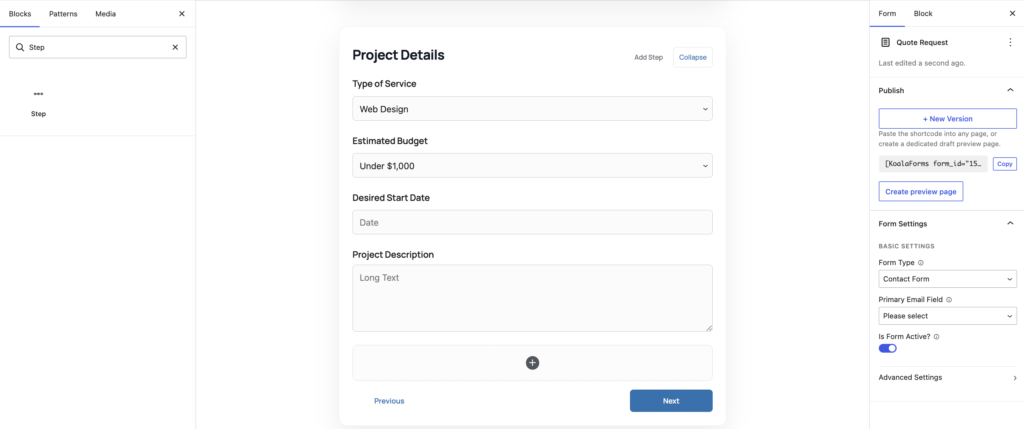
Option A: Start from a multi-step template (fastest)
Several built-in templates are already multi-step — look for the 2 Steps or 3 Steps badge in the template picker:
- Quote Request — contact details, then project and budget
- Job Application — personal info, experience, then cover letter
- Appointment Booking — your details, then date and time
- Customer Satisfaction Survey — ratings first, then open feedback
- Product Enquiry — contact info, then product and budget details
Go to Koala Forms → All Forms → Add New Form, filter by the Multi-Step category, pick one, and you’ll get a ready-made step structure to customize.
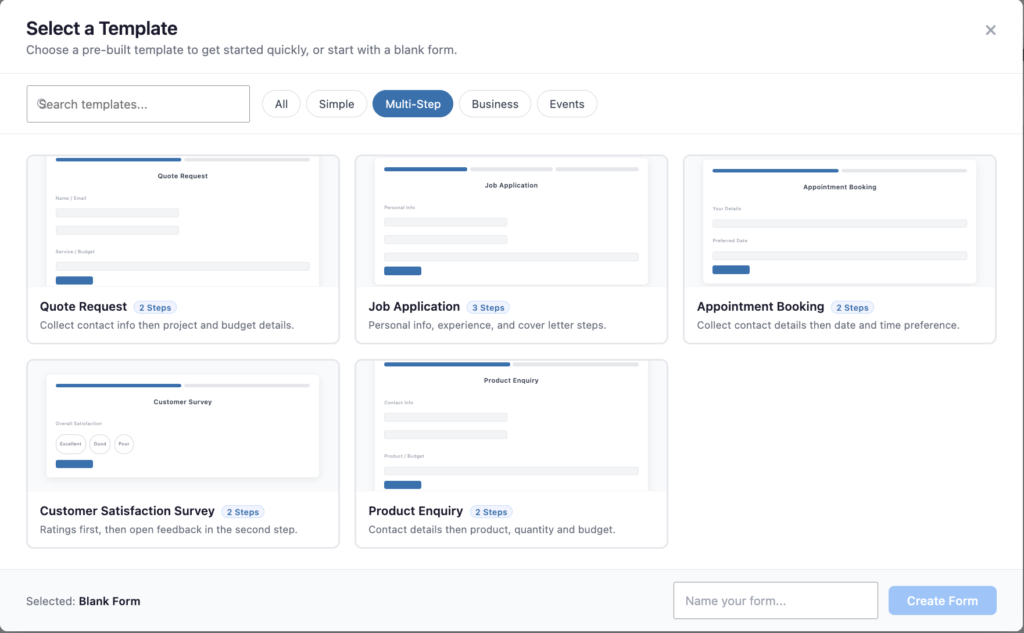
Option B: Build steps from scratch
- Create or open a form in the block editor.
- Add a Step block and give it a clear label (for example, “Your Details”).
- Insert your fields inside that step.
- Add another Step block for the next section (for example, “Preferences”) and place its fields inside.
- Repeat for as many steps as your form needs.
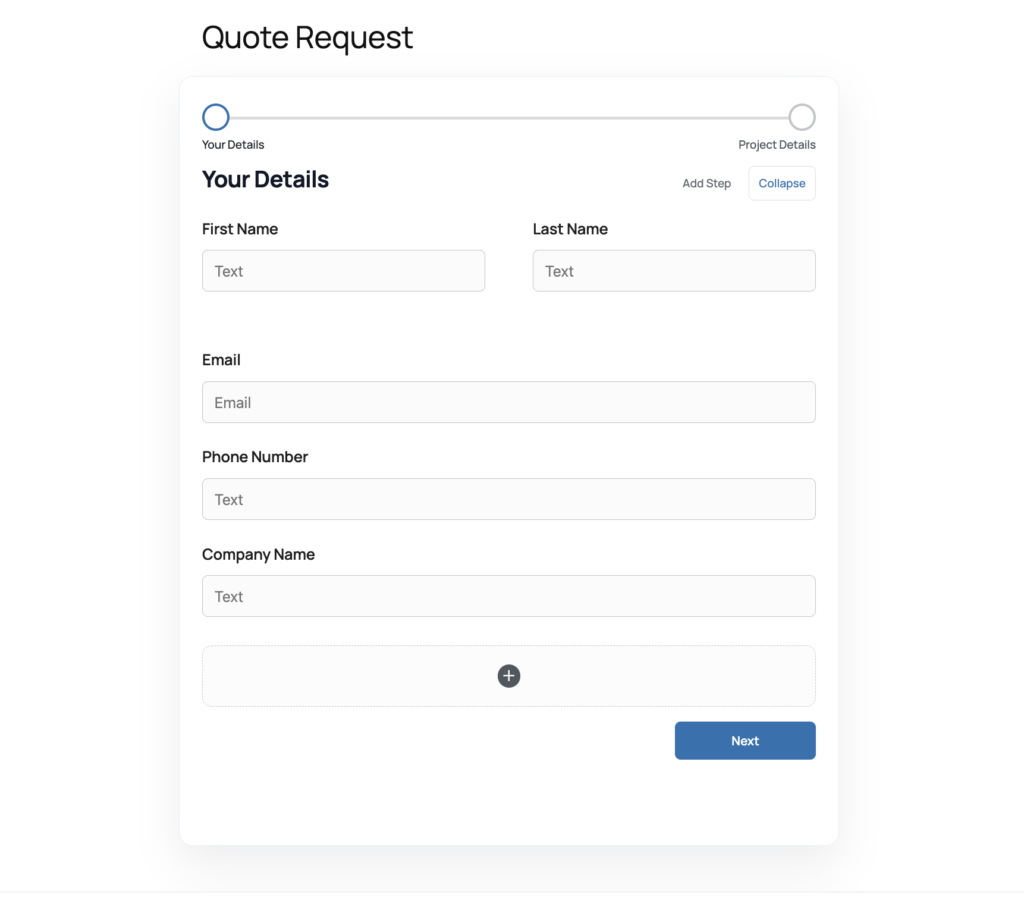
Group the right fields into each step
Each step should feel like a single, coherent unit. A common and effective pattern:
- Step 1 — Who they are: name, email, phone
- Step 2 — What they want: service, budget, dates, details
- Step 3 (optional) — Anything extra: notes, file uploads, consent
Step 3: Preview the flow from the visitor’s side
Multi-step behavior is best judged the way visitors will experience it. Use the Embed & Preview panel to create a preview page (or embed the form on a draft page), then walk through it end to end:
- Fill in the first step and click Next.
- Confirm the progress indicator advances.
- Click Previous and check that your earlier entries are still there.
- Submit on the final step and confirm the success message appears.
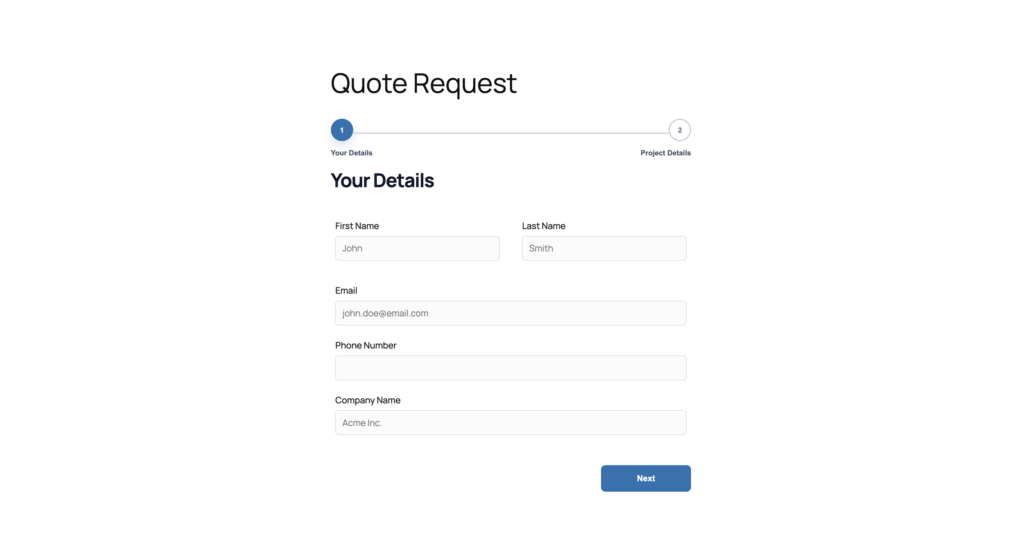
Step 4: Publish
When the flow feels smooth, click Publish (or Update). Your multi-step form is ready to embed anywhere with its shortcode, exactly like a single-step form — visitors get the stepped experience automatically.
Best practices for multi-step forms
- Keep steps short. Three to five fields per step is a comfortable target.
- Order by effort. Ask easy questions first; save uploads and long text for later steps, once people are invested.
- Label each step clearly so visitors always know what’s coming next.
- Don’t over-split. Too many tiny steps feel just as tedious as one long page — aim for balance.
- Put required fields early where possible, so you still capture the essentials even if someone drops off.
Frequently asked questions
How do I create a multi-step form in WordPress?
In Koala Forms, add a Step block for each section of your form and place the relevant fields inside each one. Koala Forms adds Next/Previous navigation and a progress indicator automatically. Or start from a multi-step template.
Do multi-step forms really improve completion rates?
Generally, yes. Splitting a long form into short, logical steps lowers perceived effort and uses progress momentum to encourage completion — especially on mobile.
Can I convert an existing single-step form into a multi-step form?
Yes. Open the form, add Step blocks, and move your existing fields inside them to group the form into sections.
How many steps should a form have?
Enough to group related fields logically, but no more. Two to four steps suits most forms; avoid splitting into so many tiny steps that filling it out feels tedious.
Are multi-step forms embedded the same way as normal forms?
Yes. They use the same [KoalaForms form_id="123"] shortcode. The stepped experience is applied automatically on the front end.
Key takeaways
- A multi-step form in WordPress splits a long form into short, friendly steps with automatic progress navigation.
- Use the Step block to create steps, or start from a multi-step template.
- Group related fields per step, keep steps short, and order by effort.
- Always preview the full flow before publishing, and embed with the standard shortcode.
You’ve now mastered building forms by hand, from single fields to polished multi-step flows. For the final guide, we’ll let Koala Forms do the building for you — using the AI Form Generator.