Book Appointment Now
How to Generate a Complete Form Instantly with the AI Form Generator (Beta)
You’ve learned to build forms field by field, use ready-made templates, and split long forms into steps. Now for the fastest method of all: describe the form you want in plain English and let KoalaForms build it for you. The AI Form Generator turns a sentence like “a patient intake form with contact details, medical history, and a consent checkbox” into a fully structured, ready-to-edit form.
In this guide you’ll learn how to connect the AI Form Generator (including the Anthropic API key it needs), how to write prompts that produce great forms, and how to refine and publish the result.
Beta notice: The AI Form Generator is in Beta — the KoalaForms team is actively refining it. It’s completely optional, and your form submission data is never sent anywhere. Only the description you type and any file you deliberately attach are used to build the form.
What the AI Form Generator does
Instead of adding and configuring each field yourself, you tell the AI what the form is for. It generates the complete structure — the right fields, labels, options, and even multiple steps where appropriate — which you then review, refine, and publish like any other KoalaForms. It’s ideal when none of the built-in templates quite match what you need.
Important: the AI Form Generator needs an AI provider and API key
This is the part people miss, so let’s be clear up front. KoalaForms does not include its own AI service or API key. To keep the plugin free and let you use your own AI account, the generator connects to an external AI provider plugin that you configure with an API key. Until that’s set up, the AI Form Generator page will show a message saying it “requires an AI provider plugin” and you won’t be able to generate anything.
Here’s exactly how to connect it.
Step 1: Install the AI provider plugin
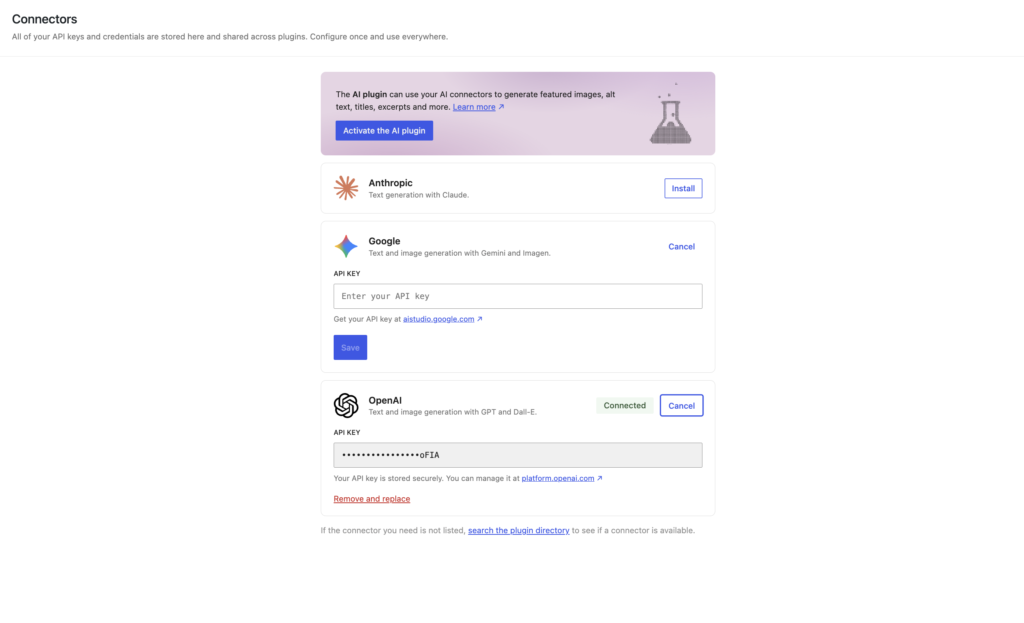
The AI Form Generator is built and tested with Anthropic, Google and OpenAI models. Install the official provider plugin:
- Go to WordPress Settings → Connectors
- Install and Connect your AI provider.
Step 2: Open the AI Form Generator
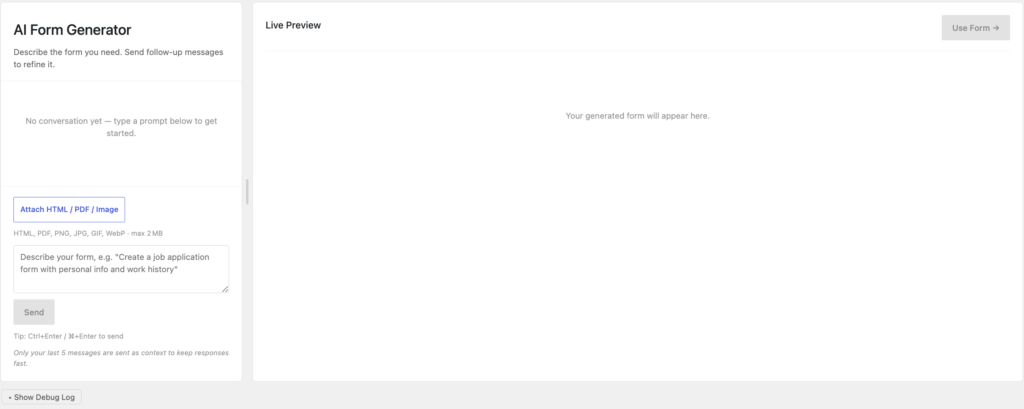
In your WordPress admin, go to KoalaForms → AI Form Generator. (You can also reach it from the template picker — click the Generate with AI card at the top.) If your provider and key are configured correctly, you’ll see the prompt box ready for input rather than the “requires an AI provider” message.
Step 3: Describe the form you want
In the prompt box, describe your form in plain language. The more specific you are, the better the result. Instead of “a contact form,” try something like:
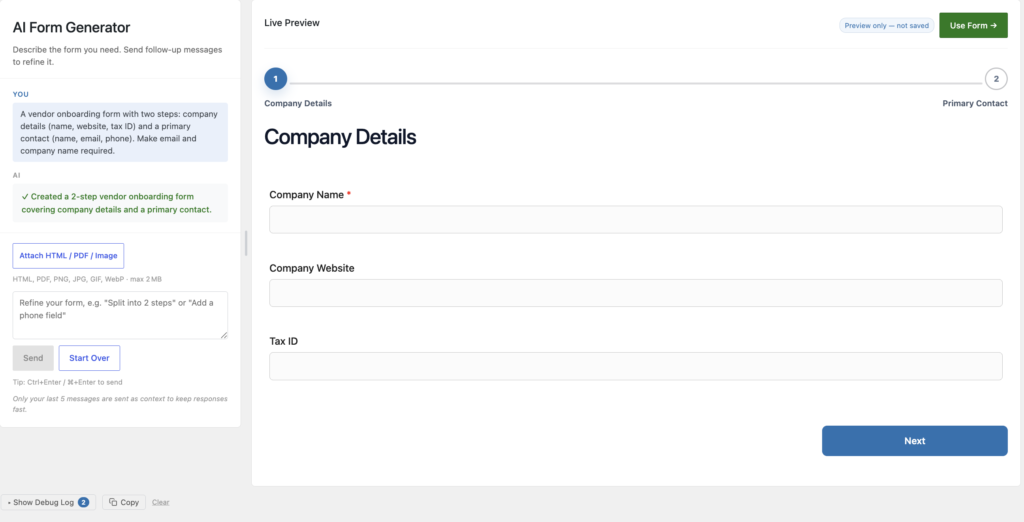
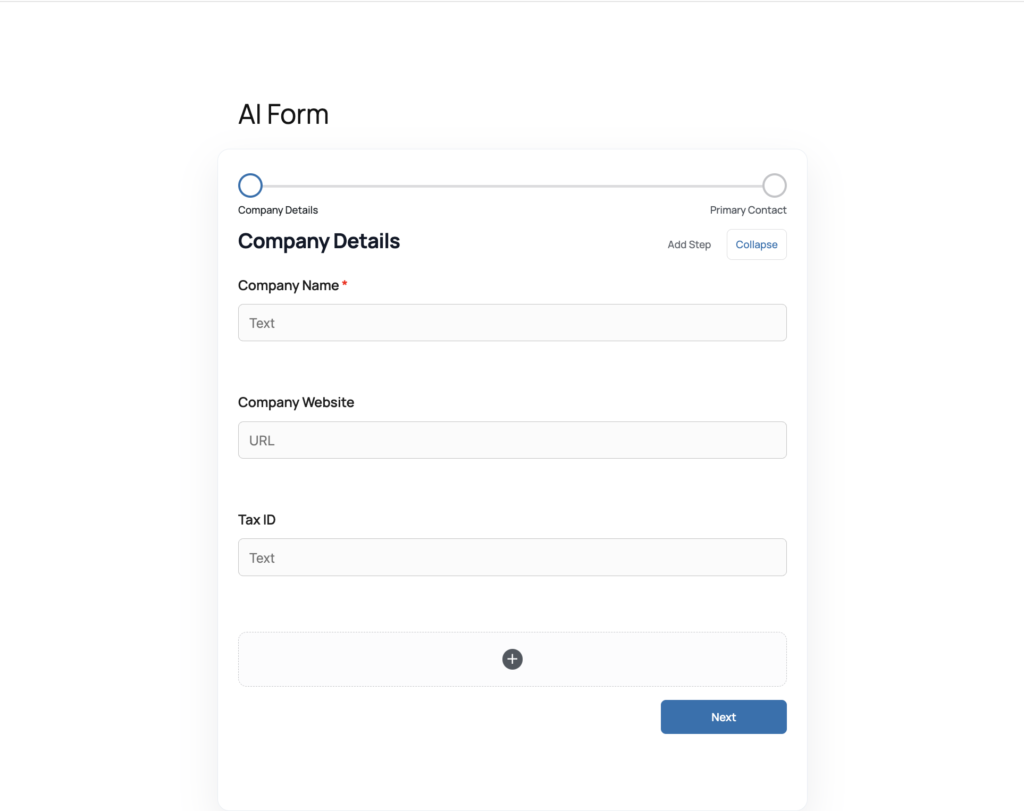
“A vendor onboarding form with two steps: company details (name, website, tax ID) and a primary contact (name, email, phone). Make email and company name required.”
Mention the fields you need, which ones should be required, any dropdown options, and whether the form should be multi-step. Specificity is what separates a rough draft from a form you can almost publish as-is.
Step 4 (optional): Attach a reference file
Have an existing paper form, a PDF, or a screenshot of a form you want to recreate? You can attach a file — a PDF, image (PNG, JPG, GIF, WebP), or HTML file — and the generator will use it as a reference when building your form. This is a fast way to digitize an existing form: upload it, and the AI reproduces its fields and structure. (Uploaded files are limited to a small maximum size, so use a single representative form rather than a large document.)
Step 5: Refine the result
The AI gives you a strong starting point — treat it as a first draft, not the finished product. You have two ways to refine it:
- Refine with another prompt. Ask for changes in plain language (“add a file upload for a resume,” “make the phone field optional,” “split this into two steps”) and regenerate. The generator remembers the context of your session, so each request builds on the last.
- Edit directly in the block editor. Once you bring the form into the editor, every field is a normal KoalaForms block you can tweak, reorder, or delete — exactly as covered earlier in this series.
Step 6: Publish and embed
When the form matches what you need, publish it and copy its shortcode from the Publish panel. Then place it on any page, post, or widget area just like any other form.
What data is (and isn’t) shared
Because this feature sends data to an AI provider, it’s worth being precise about what leaves your site:
- What is sent: the text prompt you enter, any file you deliberately attach, and — when refining — the current form’s structure and your earlier prompts from the same session.
- What is never sent: no form submissions, no visitor data, and nothing collected through your live forms is ever sent to the AI.
- When it’s sent: only when an admin explicitly clicks Generate. Nothing is sent automatically or on behalf of site visitors.
Tips for great AI-generated forms
- Be specific about fields and requirements. List them out and name the required ones.
- Say whether it should be multi-step and how to group the steps.
- Iterate. It’s faster to generate a rough form and refine it with follow-up prompts than to specify everything perfectly up front.
- Always review before publishing. Check labels, required fields, and dropdown options — you’re the editor, and the AI is your assistant.
Frequently asked questions
Do I need an API key to use the KoalaForms AI Form Generator?
Yes. KoalaForms doesn’t include its own AI service. Install the AI Provider for Anthropic plugin and add your Anthropic (Claude) API key at Settings → AI. Until then, the generator stays locked.
Is the AI Form Generator free?
The feature itself is free in KoalaForms, but the AI usage is billed by Anthropic on a pay-as-you-go basis through your own API key. You control and pay for your own usage.
Which AI models does it use?
It’s built and tested with Anthropic’s Claude models, using Claude Sonnet with Claude Opus as a fallback.
Is my form submission data sent to the AI?
No. Only your prompt, any file you attach, and (when refining) the current form structure are sent. No submissions or visitor data ever leave your site.
Can I edit an AI-generated form afterward?
Yes. The generated form is made of standard KoalaForms blocks. Refine it with more prompts, or edit it directly in the block editor like any other form.
What if the AI Form Generator page says it needs a provider?
That means no AI provider/API key is configured yet. Install the AI Provider for Anthropic plugin and add your API key at Settings → AI, then reload the generator.
Key takeaways
- The AI form generator builds a complete WordPress form from a plain-language prompt.
- It requires a one-time setup: install AI Provider at Settings → AI.
- Write specific prompts, optionally attach a reference file, then refine with follow-up prompts or in the block editor.
- Only your prompt and attached files are sent to the AI — never your form submissions or visitor data.
The AI Form Generator collapses form-building into a single description, giving you a complete, editable form in seconds. Combined with everything in this series — templates, field configuration, embedding, notifications, submissions, filtering, and multi-step flows — you now have every tool you need to build and manage powerful forms in WordPress with KoalaForms.